

Want to know how to improve website speed without rebuilding your whole site? A slow website loses visitors before they see what you offer, ranks lower than faster competitors and makes every advertising click more expensive. This guide explains how to read a page speed analysis, what Core Web Vitals (LCP, INP and CLS) mean, why websites become slow and how to improve website speed step by step — on WordPress, Shopify and custom sites.
How to run a page speed analysis
- Enter your page address in the page speed checker at the top of this page.
- Review the score and the checks in each group: server, page weight, rendering and images.
- Open the Google PageSpeed Insights link in your results to see Core Web Vitals.
- Fix the red items first, then the amber ones.
- Run the website speed test again after each change to confirm it helped.
Run the page speed analysis on your homepage and your most visited pages, on both mobile and desktop. Mobile results matter most, because most visitors use phones and Google primarily looks at the mobile version of your site.

Reading your page speed checker results
The page speed checker groups its findings into four areas, each pointing to a different kind of fix:
- Server — server response time, text compression and browser caching. Problems here usually need hosting or caching changes.
- Page weight — HTML size, CSS files, JavaScript files and third-party scripts. Problems here mean the page asks the browser to download and process too much.
- Rendering — render-blocking scripts and the mobile viewport. Problems here delay the moment visitors first see content.
- Images — image dimensions, lazy-loading and modern image formats. Problems here often affect both LCP and CLS.
Each item is marked as passed, needing attention or failing, with a short explanation. A page speed analysis score is the share of checks passed, so fixing a few failing items can lift it quickly.
Lab data and field data
Speed tools measure in two ways. Lab data comes from a test run in a controlled environment — useful for finding causes and checking fixes immediately. Field data comes from real visitors using Chrome over the previous 28 days — the data Google uses to assess Core Web Vitals for ranking. Our page speed checker focuses on the technical causes of slowness, while Google PageSpeed Insights shows both lab data and, for pages with enough traffic, real-user field data. Use both: the causes tell you what to fix, and field data shows whether real visitors notice the difference.
Core Web Vitals explained
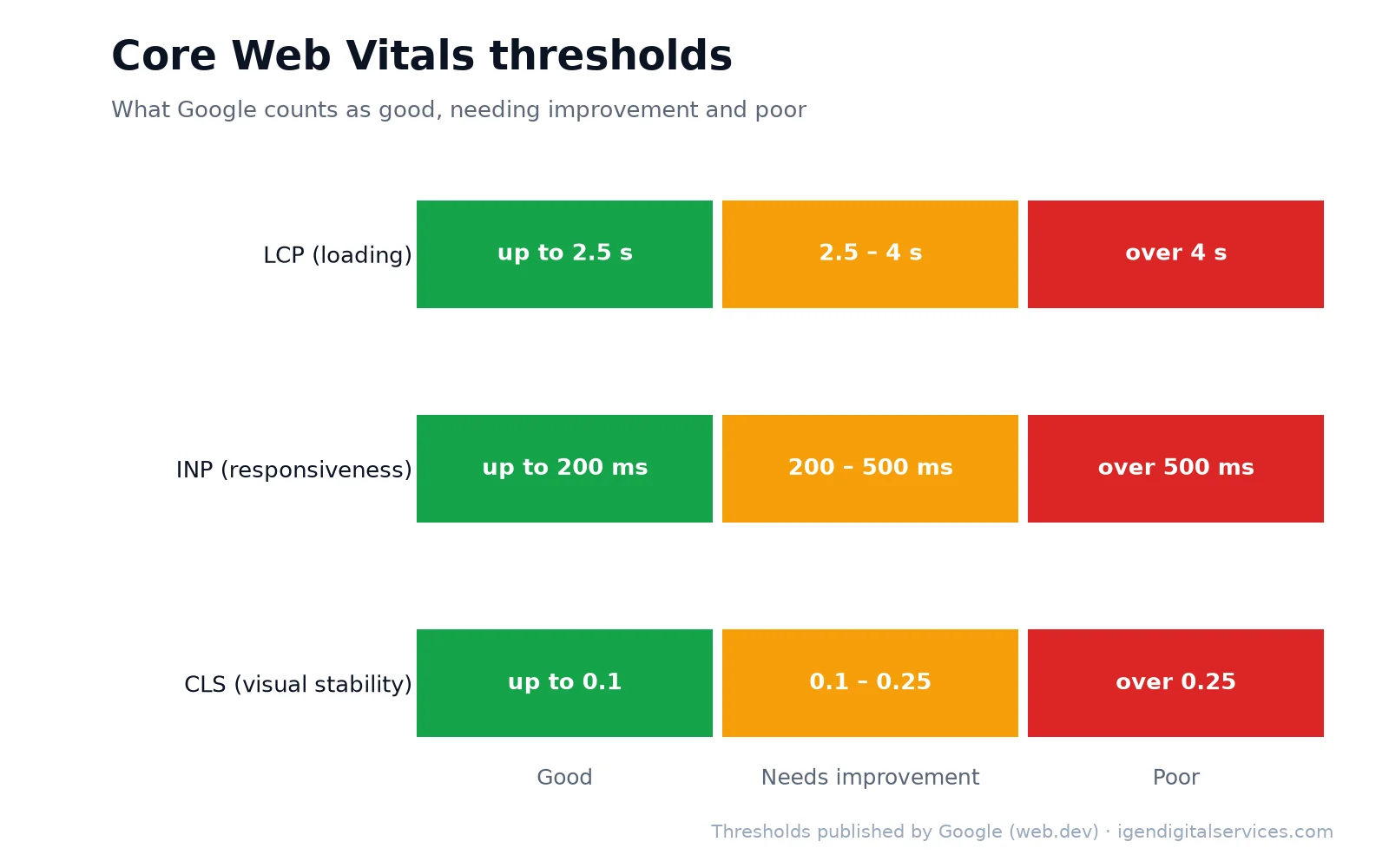
Core Web Vitals are Google’s three measures of real-world page experience. Google explains them fully on web.dev.
| Metric | What it measures | Good | Poor |
|---|---|---|---|
| LCP (Largest Contentful Paint) | How quickly the main content appears | 2.5 seconds or less | More than 4 seconds |
| INP (Interaction to Next Paint) | How quickly the page responds to taps and clicks | 200 milliseconds or less | More than 500 milliseconds |
| CLS (Cumulative Layout Shift) | How much the layout jumps while loading | 0.1 or less | More than 0.25 |
A page passes when at least 75% of real visits meet the “good” threshold for all three metrics. INP replaced the older First Input Delay metric in 2024, so any Core Web Vitals test today should report INP.
LCP: making main content appear faster
The largest element on screen — usually a hero image, banner or main heading — should appear within 2.5 seconds. Slow LCP is usually caused by slow server response, a large hero image, render-blocking CSS or JavaScript, or the main image being lazy-loaded when it should load immediately. To improve it, speed up the server with caching, compress and correctly size the hero image, serve it in a modern format, load it with high priority and avoid hiding the main content behind sliders or animations.
INP: making the page respond quickly
When a visitor taps a menu, button or form field, the page should respond within 200 milliseconds. Poor INP is usually caused by heavy JavaScript: large theme or page builder scripts, many third-party tags, chat widgets and tracking codes all competing for the phone’s processor. Remove scripts you do not need, delay non-essential ones until after the page loads, and break up long-running tasks. Fewer, lighter scripts almost always improve responsiveness.
CLS: stopping the layout from jumping
Few things frustrate visitors more than tapping a button just as the page moves. Layout shifts happen when images and videos have no set dimensions, when ads, banners or cookie notices appear above content, or when web fonts swap in with a different size. Set width and height on images and embeds, reserve space for anything that loads later, and use font settings that minimise size changes.
Why is my website slow?
The most common causes we see are:
- Slow or overloaded hosting — cheap shared servers struggle under traffic.
- No page caching — every visit rebuilds the page from scratch.
- Large images — photos uploaded straight from a camera or phone.
- Heavy themes and page builders — lots of code for simple layouts.
- Too many plugins or apps — each adds scripts, styles and database work.
- Third-party scripts — chat widgets, trackers, embedded videos and social feeds.
- No compression — text files sent without gzip or Brotli compression.
- Render-blocking files — CSS and JavaScript that stop the page from showing until they load.
Our page speed analysis flags most of these automatically.
How to improve website speed: a checklist
- Enable page caching so pages are served ready-made.
- Turn on compression (gzip or Brotli) for HTML, CSS and JavaScript.
- Set browser caching so returning visitors do not download the same files again.
- Compress and resize images, and serve modern formats such as WebP or AVIF.
- Lazy-load images below the fold, but load the main hero image immediately.
- Set image dimensions to prevent layout shifts.
- Defer non-essential JavaScript and remove scripts you no longer use.
- Minify CSS and JavaScript to reduce file sizes.
- Limit third-party scripts to those that clearly earn their place.
- Upgrade hosting if server response stays slow after other fixes.
Image optimisation
Images are usually the heaviest part of a page. Resize each image to the largest size it is actually displayed at, compress it, and use WebP or AVIF where your platform supports them. Provide several sizes so phones download smaller files than desktops. Keep the hero image as light as possible, because it often decides your LCP. For online stores with thousands of product photos, automate compression so every new upload is optimised.
Caching, compression and content delivery networks
Caching stores ready-made copies of pages and files so they can be delivered instantly. Page caching happens on the server, browser caching on the visitor’s device, and a content delivery network (CDN) stores copies on servers close to your visitors. Compression shrinks text files before sending them. Together, these are often the quickest and cheapest improvements available.
JavaScript, CSS and fonts
Every script and stylesheet must be downloaded and processed before the page is fully usable. Remove unused code, load scripts with defer or async where possible, and keep critical styles small so the first view appears quickly. Web fonts should be limited to the weights you actually use, preloaded where important, and set to display a fallback font immediately so text is never invisible.
WordPress speed tips
WordPress can be very fast when set up well. Use quality hosting and a caching plugin that suits your server — for example LiteSpeed Cache on LiteSpeed servers — choose a lightweight theme, deactivate and delete plugins you do not need, and optimise images on upload. Page builders are convenient but add weight; for key pages, a leaner build can make a noticeable difference. Keep WordPress, themes and plugins updated for both speed and security.
Shopify and ecommerce speed tips
On Shopify, most slowness comes from apps and heavy themes. Remove apps you no longer use, because some leave code behind, and choose a well-built theme. Compress product images, limit sliders and autoplay videos on the homepage, and review third-party tracking scripts. For large catalogues, check that collection pages do not load too many products or images at once. Our ecommerce website development guide has more on building fast stores.
Hosting: when to upgrade
If server response time stays slow after caching and other fixes, hosting is usually the bottleneck. Signs include slow responses even on simple pages, slowdowns at busy times and frequent errors. Look for hosting with modern server software, enough memory for your website, built-in caching and data centres close to your visitors.

How speed affects SEO, conversions and ad costs
Google uses page experience signals, including Core Web Vitals, as part of its ranking systems — they rarely outweigh relevance, but they can decide between similar pages. Speed has an even bigger effect on visitors: slow pages lose people before they read anything, especially on mobile data. Speed also affects advertising, because Google Ads considers landing page experience when deciding ad quality, which influences how much you pay per click.
Using a website speed test before and after changes
The best time to run a website speed test is before and after any change: a new plugin or app, a theme update, a redesign, new tracking codes or a hosting move. Record the results before the change, test again afterwards and compare. If speed drops, you know exactly what caused it and can fix or remove it straight away, instead of discovering months later that the website has slowly become sluggish. A quick page speed analysis each month catches gradual slowdowns too.
Page speed analysis for different types of websites
Different websites have different priorities. For a service business, the homepage and main service pages matter most, because they receive most visitors from search and ads. For an online store, test category pages, product pages and the checkout, where slowness directly costs sales. For content-heavy sites and blogs, test article templates with embedded images, videos and ads. For landing pages used in advertising campaigns, run a page speed analysis before every major campaign, because every slow second wastes paid clicks.
How we speed up websites
Our process starts with a page speed analysis of your key templates — homepage, service or product pages and blog posts — on mobile and desktop. We then fix server settings, caching and compression, optimise images, reduce and defer scripts, and replace heavy components where needed. We apply the same approach to our own website, which runs on WordPress with server-level caching, minified files and optimised images. Where a site is too heavy to fix economically, we can rebuild it on a lightweight setup through our website development service.
If you would like expert help, explore our free page speed analysis tool or request a quote for your business.
Key takeaways
- A page speed analysis finds the technical causes of slowness; PageSpeed Insights shows real-user Core Web Vitals.
- Good Core Web Vitals: LCP within 2.5 seconds, INP within 200 milliseconds and CLS of 0.1 or less.
- Caching, compression, image optimisation and fewer scripts fix most slow websites.
- Faster pages help rankings, conversions and the cost of advertising.
Frequently asked questions
What is a good page speed score?
Why does my speed score change every time I test?
Why is my mobile score lower than desktop?
Does page speed affect Google rankings?
What is a Core Web Vitals test?
Is the page speed checker free?
How often should I run a page speed analysis?
Can you make my website faster?
Want expert help with this?
See what our free page speed analysis tool include, or get a free proposal for your business.

Digital Marketing Consultant and Certified Marketing Analyst from IIT Roorkee, with 10+ years of experience helping businesses improve their digital presence, generate qualified leads and drive measurable growth through SEO, AEO, GEO, Google Ads, performance marketing and analytics.